RetroBarNG
The taskbar of Windows 95, 98, 2000, XP and Vista, back on your Windows 10 or 11 PC: a Start button, a row of task buttons, Quick Launch, and a tray with a clock.
RetroBarNG is a fork of the much-loved RetroBar, rewritten from the ground up in Rust. It keeps RetroBar's look, its themes and its settings, comes as one exe with nothing to install, and adds the features I kept wishing it had.
A 2.2 MB zip with RetroBarNG.exe and its license files. No installer, no .NET runtime to download, no account, no telemetry, no ads.
SHA-256 of RetroBarNG.exe: AA533D915B7FAA8AE3E6CD000D1524D24884B002D5EFC171DB2AEDFB6C648D5F
What it is
The modern taskbar keeps changing under you: buttons merge, labels disappear, the Start button moves to the middle and the menus fill up with things you never asked for. RetroBar answered that with a faithful classic taskbar, and lots of people, me included, have used it every day.
RetroBarNG is that taskbar rebuilt. Every part of RetroBar was rewritten in Rust and talks to Windows directly, with no .NET or WPF underneath. It reads RetroBar's own XAML themes unchanged, so every bundled theme and your custom ones still work, and it uses the same settings.json, so moving over takes no setup at all.
On top of that come the things RetroBar doesn't do: grouped and icon-only buttons, its own virtual desktops, a taskbar you can drive from the keyboard, crash reports, profiles and a portable mode.
Getting started
- Unzip
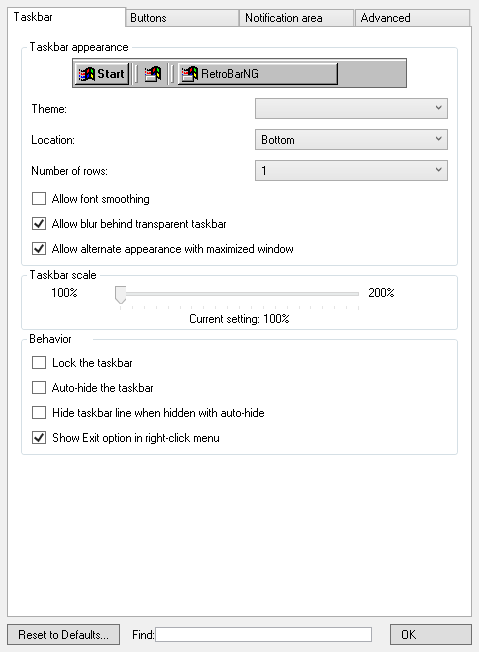
RetroBarNG.exeanywhere you like and run it. There is nothing to install and no runtime to download. - The classic taskbar takes over from Windows' own. Right-click it and choose Properties to pick a theme, from Windows 95 to Vista.
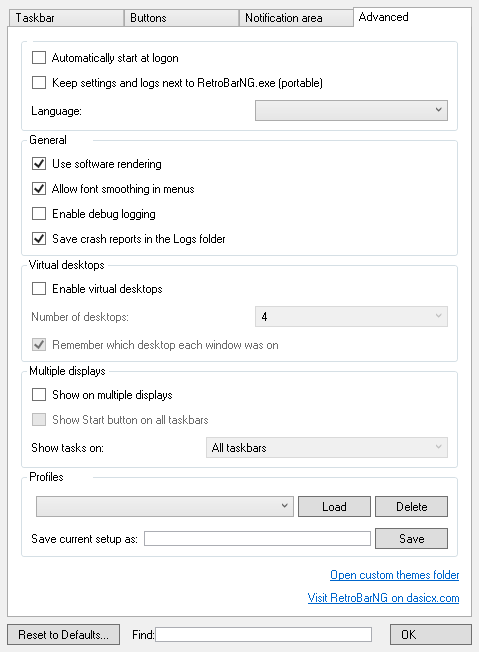
- Want it every day? Tick Automatically start at logon on the Advanced tab.
- To go back, right-click the taskbar and choose Exit RetroBarNG. Windows' own taskbar comes straight back.
Coming from RetroBar? Exit it first. RetroBarNG reads RetroBar's settings and your custom themes from %LOCALAPPDATA%\RetroBar, so your taskbar looks the way you left it.
Why RetroBarNG
RetroBar got the look right. RetroBarNG keeps the look and works on everything underneath it: how it's delivered, how much it uses, and what happens when something goes wrong.
-
One file, nothing to install
RetroBar needs the Microsoft .NET Desktop Runtime, which its installer downloads, or the portable version asks you to fetch on first launch. RetroBarNG is a single native exe of about 6 MB with every theme, language and image inside it. Copy it to a new PC and run it.
-
Light on your PC
A taskbar runs all day, so it should cost next to nothing. RetroBarNG draws with software rendering by default and uses about 24 MB of private memory and 18 threads with 11 windows open, measured with the default theme. Theme images are decoded at the size they are drawn, and menus only exist while they are open.
-
Never goes online
RetroBar checks GitHub for updates by default. RetroBarNG contains no networking code at all: no update checks, no telemetry. Block it in your firewall and you lose nothing. New versions are announced on this page.
-
Built to recover
If RetroBarNG ever crashes, it writes the error with its full call stack to its log and keeps a crash dump, so a problem can actually be fixed. A small watchdog makes sure Windows' own taskbar, and any windows hidden on other desktops, come back even then.
-
Reviewed and tested
The rewrite went through several rounds of code review, and more than 150 findings were fixed, from crashes and leaks to misplaced menus. Around 190 automated tests cover the settings, the theme engine, layout and the shell.
-
Same themes, same settings
RetroBarNG loads RetroBar's XAML themes as they are, including your own in
%LOCALAPPDATA%\RetroBar\Themes, and shares RetroBar'ssettings.json. New features are off by default, so out of the box it behaves like the taskbar you know.
RetroBar and RetroBarNG side by side
| RetroBar 1.23 | RetroBarNG 1.0 | |
|---|---|---|
| Built with | C# and WPF, on .NET | Rust, talking to Windows directly through Win32 and Direct2D |
| To run it | Needs the .NET Desktop Runtime, downloaded by the installer or on first launch | Nothing else: one self-contained exe |
| What you get | An installer, or a folder of program files | One exe of about 6 MB, with all themes and 47 languages inside |
| Internet | Checks GitHub for updates, on by default | No network code at all |
| Themes and settings | XAML themes, settings.json | The same files, read as they are; your custom themes keep working |
| Task buttons | One button per window, with labels | Optional grouping (never, when full, always) and icon-only buttons, for the whole bar or per program |
| Virtual desktops | None of its own | XP PowerToys-style desktops: up to 9, a switcher on the taskbar, per-program rules, and a layout that is remembered |
| Keyboard | Win+1 to Win+0 | Also Win+T and Win+B through buttons and tray icons, Ctrl+Win+arrows for desktops, and a shortcut to search open windows |
| Clock | Time, date tooltip | Plus extra time zones, a calendar and Copy Date and Time |
| Task button menu | Window commands | Plus recent files, Pin to Quick Launch and Move to Desktop |
| Toolbars | Quick Launch | Plus Desktop, Links or any folder as a toolbar |
| Properties | One window of options | A Find box and a tooltip on every option, profiles you can save and load, and Reset with an automatic backup |
| Portable use | A portable zip; settings go to AppData | A real portable mode: one tick keeps settings, logs and themes next to the exe |
| When it crashes | An error dialog with a restart offer | Plus a crash report with call stack and a dump, and a watchdog that gives Windows' taskbar back |
RetroBar still has a few things RetroBarNG doesn't: an installer, builds for 32-bit and ARM64 Windows, and support for Windows 7 and 8.1. See Good to know.
At a glance
| Size | One exe of about 6 MB, a 2.2 MB download |
| Install | None. Run it from any folder |
| Needs | Windows 10 or 11, 64-bit (x64). No .NET or other runtime |
| Network | None. No update checks, no telemetry |
| Themes | 19 built in: Windows 95-98, Me, 2000, XP (Blue, Olive Green, Silver, Royale, Royale Noir, Zune, Embedded, Classic), Vista (Aero, Basic, Classic), Longhorn, Watercolor and more, plus RetroBar custom themes |
| Languages | 47, the same as RetroBar |
| Settings | %LOCALAPPDATA%\RetroBar, shared with RetroBar, or next to the exe in portable mode |
| Registry | Untouched, unless you turn on Automatically start at logon |
What it does
Everything RetroBar does: the Start button, task buttons with drag reordering, Quick Launch, a notification area with balloons and collapsible icons, the clock, auto-hide, locking, any screen edge, several rows, several monitors, Vista thumbnails and the keyboard layout switcher. And then:
-
Grouped and icon-only buttons
Group a program's windows into one button never, only when the taskbar is full, or always. Show the whole bar as icons, or just one program: right-click its button and choose Show as Icon Only.
-
Virtual desktops, the XP way
Up to nine desktops with a switcher on the taskbar: click it or scroll over it. Move a window with Move to Desktop, give a program a home with Always Open On, and let RetroBarNG remember where everything was.
-
Search open windows
A small box that lists every open window, on every desktop. Type part of a name and press Enter. Open it from the taskbar menu or a shortcut of your choice.
-
A taskbar for the keyboard
Win T walks the task buttons and Win B the tray icons; arrows move, Enter opens, the Menu key opens the menu.
-
Recent files and Quick Launch pins
A task button's menu lists the program's recent files, and Pin to Quick Launch puts it there in one click.
-
A better clock
More time zones in the tooltip, a month calendar on click, and Copy Date and Time in the menu.
-
Folder toolbars
Desktop, Links or any folder of your own as a toolbar next to Quick Launch.
-
Tray icons your way
Shift + right-click a tray icon to choose always show, hide when inactive or always hide. Middle-click to hide it in one go.
-
Profiles
Save your taskbar setup under a name and switch between setups. Reset to Defaults keeps a backup profile first, so nothing is lost.
-
Portable mode
One tick moves settings, logs, profiles and your themes into a
RetroBar Datafolder next to the exe, ready for a USB stick.
Keys
| Win T | Move through the task buttons |
| Win B | Move through the tray icons |
| Ctrl Win ← / → | Previous / next desktop (with RetroBarNG's desktops on) |
| Ctrl Win Shift ← / → | Take the active window along |
| Win 1 … 0 | Switch to a task, or open a Quick Launch item (can be chosen) |
| Win Alt Space | Search open windows, if you pick this shortcut (or Ctrl Alt Space, Ctrl Alt W) |
| Shift + right-click | On a tray icon: choose when it shows |
Moving over from RetroBar
Your setup comes along
Exit RetroBar, then start RetroBarNG. It reads the same settings.json and the same custom themes folder, so the theme, position, rows, tray choices and Quick Launch are as you left them.
RetroBarNG's own options are saved in that file too. RetroBar ignores them, so you can switch back at any time; RetroBar just leaves them out when it saves.
Only one at a time
Both replace Windows' taskbar, so run one or the other. If you turn on Automatically start at logon in RetroBarNG, it takes RetroBar's place at sign-in.
Privacy
RetroBarNG has no networking code. It doesn't check for updates, doesn't send telemetry and doesn't download anything. The only links in it open this page or Microsoft's date format help in your own browser.
Everything it writes stays in %LOCALAPPDATA%\RetroBar, or next to the exe in portable mode: settings.json, your profiles, and a Logs folder whose logs and crash reports are deleted after 7 days.
Good to know
- Windows may warn about an unrecognised app the first time you run it. Choose More info → Run anyway. You can check the download against the SHA-256 at the top of this page.
- RetroBarNG is for 64-bit (x64) Windows 10 and 11. For Windows 7 or 8.1, or for 32-bit or ARM64 PCs, use RetroBar.
- Text on the taskbar is drawn with grayscale smoothing instead of ClearType; menus and dialogs use ClearType as before.
- If hardware drawing suits your PC better, untick Use software rendering on the Advanced tab. It uses a little less CPU and more memory.
Credits
RetroBar has been on my taskbar for years. RetroBarNG is my thank-you to it: the same taskbar, rebuilt in Rust to be lighter, sturdier and a little more capable.
RetroBarNG is a fork of RetroBar by Sam Johnson and the RetroBar contributors, which is built on ManagedShell. RetroBar's design, behaviour, themes, translations and images are theirs, used under the Apache License 2.0; the license and notices come with the download. My thanks to everyone who made RetroBar and shared it.
RetroBarNG is an independent project. The RetroBar developers are not involved in it and don't support it, so please don't bring problems with RetroBarNG to them: write to me instead.
RetroBarNG is free to use. It is distributed as a program only; the source code is not published at this time.
Contact
Found a problem, have a question or a suggestion? Write to mail@dasicx.com. A link to this page is also in RetroBarNG itself, at the bottom of the Advanced tab in Properties.
For a problem, it helps to say which version of Windows you use, which theme, what you did and what you expected. The Logs folder in %LOCALAPPDATA%\RetroBar holds RetroBarNG's logs and crash reports. They can contain the names of your programs and windows, so look through them before you send them.